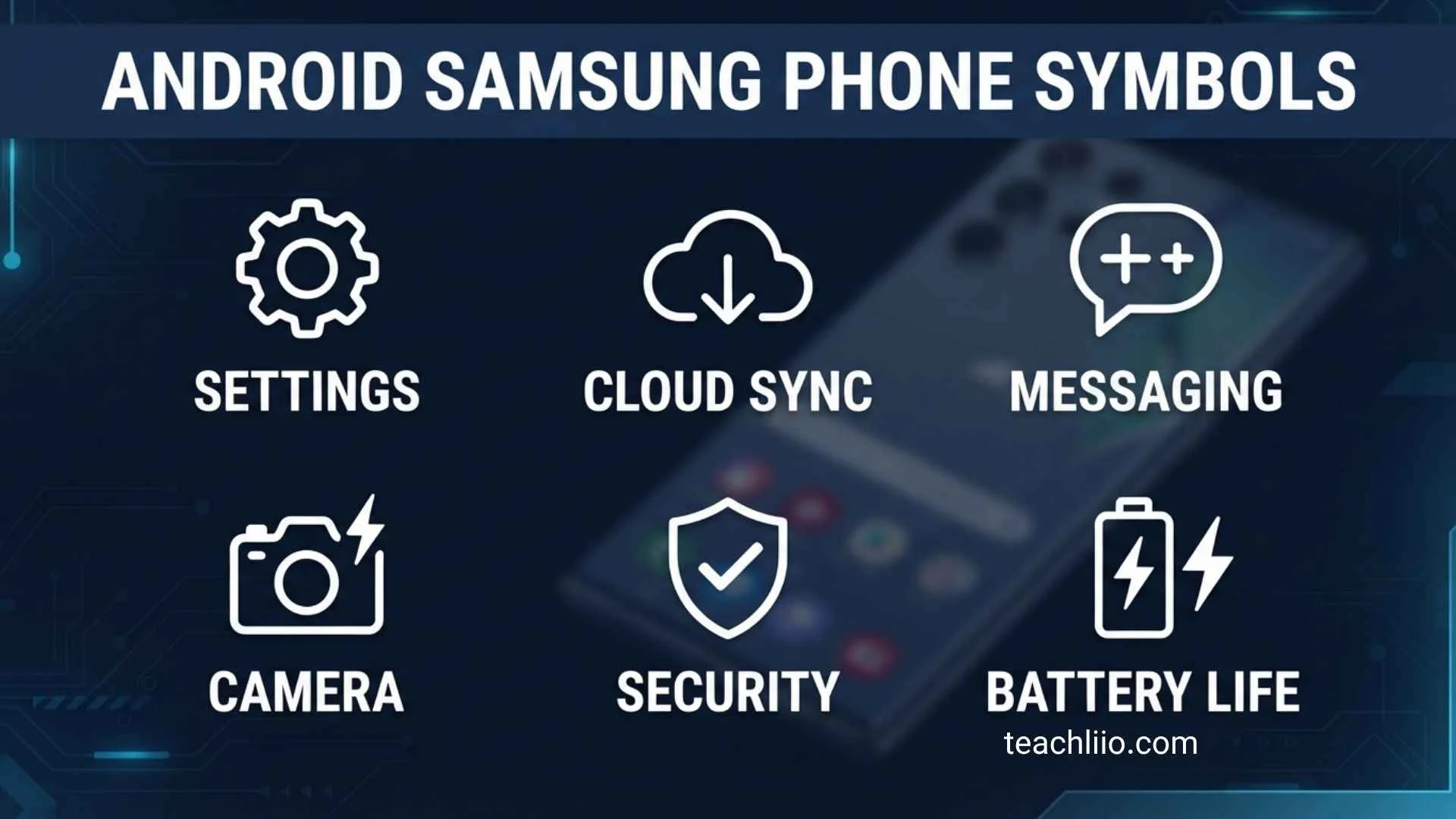
Have you ever looked at the top of your Samsung phone and wondered what a strange symbol means? You are not alone. Samsung Galaxy phones can display many different icons for network connections, battery status, notifications, privacy features, sound settings, apps, accessories, and system functions.
The good news is that most Samsung phone symbols are simply telling you what your device is doing. A 5G symbol usually means you are connected to a 5G network, a lightning bolt indicates charging, and an airplane symbol means Airplane mode is enabled.
However, Samsung icons can vary depending on your Galaxy model, carrier, region, Android version, and One UI version. Therefore, there is not one universal list that looks exactly the same on every Samsung device.
This guide explains the most common Android Samsung phone symbols, what they mean, whether they are normal, and what you can do when an unfamiliar icon appears.
Samsung Phone Symbols at a Glance
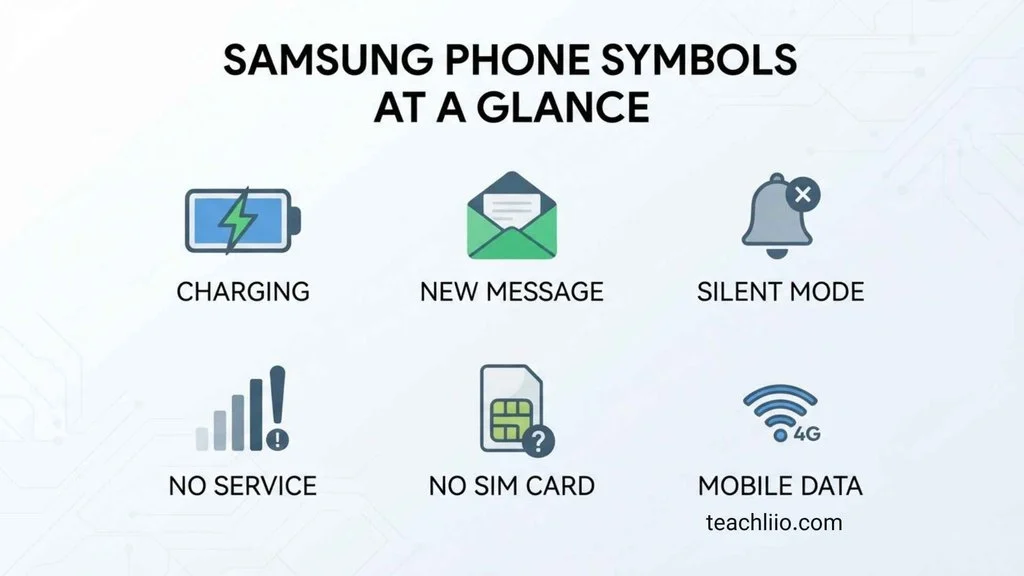
The fastest way to understand a Samsung icon is to identify which category it belongs to.
| Symbol or Icon | Meaning | What You Should Do |
| Signal bars | Mobile network strength | Usually nothing |
| 4G/LTE | 4G network connection | Normal |
| 5G | 5G network connection | Normal |
| Wi-Fi | Connected to Wi-Fi | Normal |
| Wi-Fi with warning | Wi-Fi connection needs attention | Check internet |
| Bluetooth | Bluetooth is active/connected | Nothing unless unexpected |
| Battery | Battery level | Check charge if low |
| Lightning bolt | Phone is charging | Normal |
| Airplane | Airplane mode is active | Turn it off if unwanted |
| Location | Location service is active | Check permissions if unexpected |
| VPN | VPN is connected | Check VPN settings if unfamiliar |
| Hotspot | Mobile hotspot is active | Turn off when not needed |
| Moon/DND | Do Not Disturb is active | Disable if alerts are being blocked |
| Alarm clock | Alarm is scheduled | Open Clock if unwanted |
| Speaker/sound | Sound setting is active | Adjust volume or sound mode |
| Vibration | Vibration mode is active | Change sound mode if needed |
| Screen recording | Screen is being recorded | Stop recording when finished |
| NFC | NFC is enabled or active | Disable if you don’t use it |
| S Pen | S Pen status | Check S Pen connection/battery |
Samsung explains that the available indicators can vary by Galaxy model, software version, network provider, and other factors.
What Are the Symbols at the Top of a Samsung Phone?
The icons along the top of your Galaxy screen are generally called status bar icons or indicator icons. They provide quick information without requiring you to open Settings.
For example, the status bar can tell you whether you have a mobile connection, whether Wi-Fi is active, how much battery remains, whether Bluetooth is connected, or whether a particular system feature is running.
Status Bar Icons
Status icons describe the current condition of the phone.
Common examples include:
- Mobile signal strength
- Wi-Fi connection
- 4G or LTE
- 5G
- Battery level
- Charging
- Bluetooth
- Location
- VPN
- Alarm
- Sound or vibration mode
These symbols are generally informational. Seeing one does not automatically mean something is wrong.
Notification Icons
Notification icons tell you that an app or system feature has something to communicate.
Examples can include:
- New text message
- Missed call
- Software update
- Screenshot
- Download
- App notification
- System warning
If you do not recognize a notification icon, swipe down from the top of the screen. The notification panel normally provides more information about the app or feature that generated it.
Quick Panel Icons
Quick Panel icons are controls rather than simple status indicators.
You can normally access them by swiping down from the top of your Galaxy screen.
Depending on the model and software version, the Quick Panel may contain controls for:
- Wi-Fi
- Bluetooth
- Mobile data
- Location
- Flashlight
- Airplane mode
- Mobile hotspot
- Power saving
- Do Not Disturb
- Screen recording
- Auto rotate
- Quick Share
- NFC
- Sound mode
A Quick Panel button may appear differently when a feature is active or inactive.
Samsung Network Symbols and Meanings
Network icons are among the most frequently misunderstood Samsung phone symbols.
Mobile Signal Bars
The vertical bars show the strength of your mobile network connection.
More filled bars generally indicate a stronger cellular signal, while fewer bars indicate a weaker signal.
Weak signal does not necessarily mean your phone is broken. Building materials, distance from a cell tower, terrain, network congestion, and your carrier can all affect signal strength.
No Signal
A missing or unavailable signal indicator means the phone cannot establish a normal mobile network connection.
Possible reasons include:
- You are in an area with poor coverage.
- Airplane mode is enabled.
- Your SIM or eSIM has a problem.
- The carrier is experiencing an outage.
- Network settings need attention.
If the problem continues, check your SIM/eSIM and network settings before assuming the phone has a hardware problem.
4G Symbol
A 4G icon indicates that your phone is connected to a fourth-generation mobile network.
The exact icon and network technology available can depend on your carrier and location.
LTE Symbol
LTE stands for Long-Term Evolution and is a mobile broadband technology commonly associated with 4G networks.
Seeing LTE on a Samsung phone is generally normal. It does not mean the phone has a problem.
5G Symbol
The 5G icon indicates that the phone is connected to a network using 5G technology.
However, seeing 5G does not guarantee a particular download speed. Actual performance depends on network coverage, congestion, signal conditions, your plan, and the carrier.
Roaming Symbol
A roaming indicator generally means your phone is using a mobile network outside its normal home network arrangement.
Roaming can occur domestically or internationally depending on the carrier.
If you are traveling, check your carrier’s roaming policies because additional charges may apply.
Wi-Fi Symbol
The Wi-Fi icon indicates that your Samsung phone is connected to a Wi-Fi network.
A strong Wi-Fi symbol generally indicates a good connection between your phone and the wireless network, but it does not necessarily guarantee that the internet connection itself is working perfectly.
Wi-Fi Connected but No Internet
Sometimes a Samsung phone can remain connected to Wi-Fi even when the Wi-Fi network has no working internet connection.
Try:
- Open another website or app.
- Check whether other devices have internet access.
- Restart the router if necessary.
- Disconnect and reconnect to Wi-Fi.
- Restart your phone.
- Check whether the network requires a login page.
This distinction is important: being connected to a Wi-Fi router is not exactly the same as having working internet access.
Bluetooth Symbol
The Bluetooth symbol indicates that Bluetooth is enabled or being used for a connection.
It may appear when you connect devices such as:
- Wireless earbuds
- Headphones
- Smartwatches
- Speakers
- Cars
- Keyboards
- Other Bluetooth accessories
If Bluetooth is enabled but you are not using it, you can turn it off from Quick Settings.
Samsung Battery and Charging Symbols
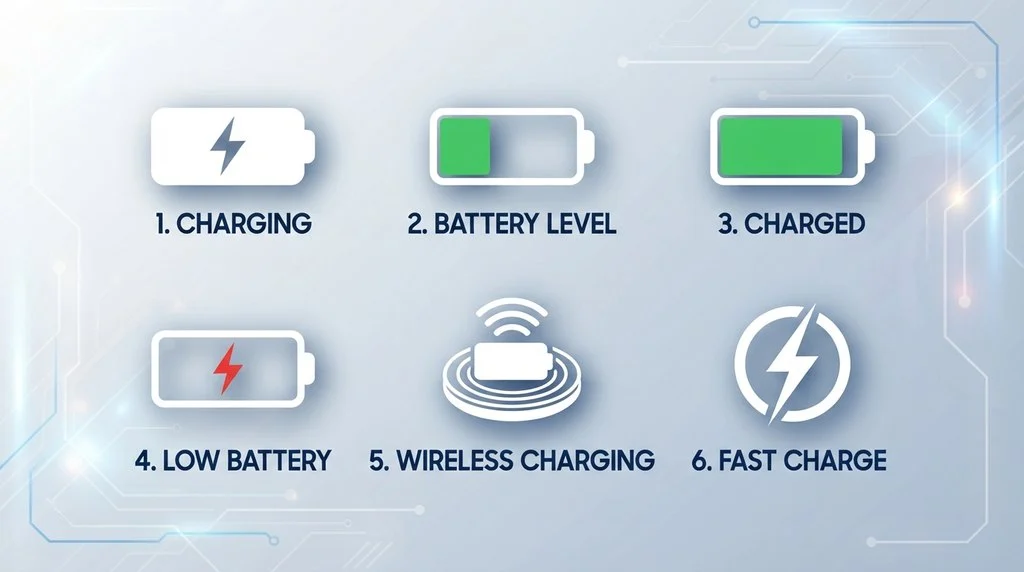
Battery indicators are among the most useful Samsung phone symbols because they tell you about your remaining power and charging status.
Battery Level
The battery icon provides a visual estimate of remaining battery power.
If the battery becomes very low, connect the phone to a suitable charger or power source.
Some Galaxy phones can also display the battery percentage beside the battery icon, depending on your settings.
Charging Symbol
A lightning symbol or another charging indicator normally means the phone is receiving power.
If the phone says it is charging but the battery percentage does not increase, check:
- Charging cable
- Charger
- Charging port
- Power outlet
- Wireless charger, if applicable
- Phone temperature
A damaged cable or incompatible accessory can sometimes cause charging problems.
Power Saving Symbol
When Power Saving mode is active, Samsung may display an indicator or change battery-related behavior.
Power Saving can reduce background activity and limit certain functions to extend battery life.
If your phone seems slower or some background functions behave differently, check whether Power Saving is enabled.
Battery Warnings
A battery-related warning should not automatically be ignored.
If your Samsung phone becomes unusually hot, stops charging, repeatedly shows charging warnings, or behaves abnormally, stop using damaged accessories and investigate the cause.
Persistent charging or battery problems may require Samsung support or professional service.
Samsung Call, Message, and Sound Symbols
Samsung phones also use icons to show communication and sound settings.
Missed Call Symbol
A missed-call notification indicates that someone attempted to call you and you did not answer.
Open the Phone app or notification panel to see the relevant information.
New Message Symbol
A message icon usually indicates a new SMS, MMS, or supported messaging notification.
The exact appearance can vary according to the messaging application and One UI version.
Alarm Clock Symbol
An alarm clock icon normally means that an alarm is scheduled.
If the icon appears and you do not remember setting an alarm, open the Clock app and check your active alarms.
Silent Mode
A speaker-related icon with a slash or similar indicator can mean the phone’s sound has been muted.
This is useful to check when you are not hearing incoming calls, notifications, or media sounds.
Vibration Mode
A vibration-related symbol indicates that the phone is configured to use vibration instead of normal ringtone behavior for certain notifications or calls.
You can change sound mode from Quick Settings or the phone’s sound settings.
Do Not Disturb
A moon-shaped or similar symbol can indicate Do Not Disturb.
When active, Do Not Disturb can restrict calls, alerts, and notifications according to your configured rules.
If you are missing calls or notifications, check whether DND is enabled or scheduled.
Samsung Privacy and Security Symbols
Modern Samsung phones can display indicators related to privacy and security.
Location Symbol
The location icon indicates that location services are active or being used.
Location can be required by applications such as:
- Maps
- Weather
- Ride-sharing apps
- Navigation
- Fitness applications
- Camera features
Seeing a location indicator does not automatically mean someone is secretly tracking your phone.
If the symbol appears unexpectedly, review which apps have location permission.
Camera Privacy Indicator
Samsung phones may provide privacy indicators when an application is using the camera.
If you see an unfamiliar privacy indicator, consider which application you recently opened and review app permissions if necessary.
Microphone Privacy Indicator
Similarly, a microphone indicator can appear when an application is using the microphone.
This can be normal during:
- Phone calls
- Voice recording
- Video recording
- Voice assistants
- Voice messages
If you are concerned about an unfamiliar app, review its microphone permission.
VPN Symbol
A VPN icon generally indicates that a Virtual Private Network connection is active.
A VPN can be useful for privacy, security, or accessing a private network.
If you do not remember enabling a VPN, check your VPN settings and installed applications.
Screen Recording Symbol
A screen-recording indicator means your Samsung phone is recording the display.
This can be useful for creating tutorials, saving demonstrations, or showing someone how to perform a task.
Remember that screen recordings can capture sensitive information visible on your screen, so stop the recording when you are finished.
Secure Folder
Samsung’s Secure Folder feature can produce related indicators or notifications.
Secure Folder is designed to provide a protected space for selected apps, files, and other content.
The exact icon or notification can vary by Galaxy model and One UI version.
Samsung Connection and Sharing Symbols
Galaxy phones can display additional symbols when sharing data or connecting to other devices.
Mobile Hotspot
The Mobile Hotspot symbol means your phone is sharing its mobile internet connection with another device.
Hotspot can consume mobile data and battery, so turn it off when you no longer need it.
NFC Symbol
NFC, or Near Field Communication, allows compatible devices to communicate over a short distance.
It can be used for certain contactless payments, accessories, and other supported functions.
Casting Symbol
A casting indicator generally means your phone is sending media or screen content to another compatible device.
This can include a smart TV or supported streaming device.
If casting starts unexpectedly, check your connected-device or casting controls.
Quick Share
Quick Share allows compatible devices to exchange files and content.
Its availability and exact behavior can depend on the Galaxy device, software, and connected devices.
Wi-Fi Calling
Wi-Fi Calling allows supported calls to use a Wi-Fi network under appropriate carrier and device conditions.
The icon may appear when the feature is available or active.
Samsung S Pen Symbols
Galaxy devices that support an S Pen can display additional indicators that other Samsung phones do not have.
S Pen Connected
A connection indicator can appear when the S Pen is properly connected or recognized.
This is particularly relevant to supported Galaxy Note, Galaxy S Ultra, Galaxy Tab, and other compatible devices.
S Pen Disconnected
If the phone reports that the S Pen is disconnected or missing, check whether the pen is properly stored or paired according to your device’s design.
S Pen Battery
Some supported S Pen models include a battery or charging status.
If the S Pen is not responding to supported remote features, checking its charge can be a useful first step.
Samsung Warning Symbols: Which Ones Need Attention?
Not every unfamiliar Samsung icon is a warning.
A useful way to understand them is to place symbols into three groups.
Normal Status Icons
These are generally nothing to worry about:
- Wi-Fi
- Bluetooth
- 5G
- LTE
- Battery
- Charging
- Alarm
- Location
- Sound mode
Their presence usually means a feature is active or a connection exists.
Icons You Should Check
These may be normal but deserve attention if you did not intentionally enable them:
- VPN
- Mobile hotspot
- Screen recording
- Casting
- NFC
- Location
- Do Not Disturb
For example, a hotspot icon is normal when you are sharing mobile data, but it is worth investigating if you never intended to turn the hotspot on.
Warning Icons
A genuine warning or attention indicator should not be ignored.
Open the notification panel and read the accompanying message. The notification often provides more context than the small status-bar icon itself.
If the warning concerns charging, overheating, storage, security, or another important system function, follow the instructions provided by the phone.
Samsung Quick Panel Symbols
The Quick Panel gives you fast access to frequently used controls.
Common controls can include:
| Quick Panel Symbol | Function |
| Wi-Fi | Turn Wi-Fi on/off or manage networks |
| Bluetooth | Manage Bluetooth connections |
| Mobile Data | Enable or disable cellular data |
| Location | Control location services |
| Flashlight | Turn the flashlight on/off |
| Airplane Mode | Disable wireless connections according to Samsung’s mode |
| Mobile Hotspot | Share your mobile connection |
| Power Saving | Reduce power consumption |
| Auto Rotate | Change screen orientation behavior |
| Do Not Disturb | Limit interruptions |
| Screen Recording | Record the phone display |
| Quick Share | Share content with supported devices |
| NFC | Control NFC-related functionality |
| Sound | Change sound mode |
The exact controls and their appearance can differ between Samsung Galaxy models and One UI versions.
How to Find Out What an Unknown Samsung Icon Means
If you see a symbol that you cannot identify, do not immediately assume that something is wrong.
Step 1: Pull Down the Notification Panel
Swipe down from the top of the screen.
Look for a notification associated with the unfamiliar symbol.
Step 2: Check Quick Settings
Some icons correspond directly to Quick Panel features.
Look for recently activated functions such as:
- Hotspot
- DND
- Location
- Bluetooth
- Screen recording
- Power saving
- Airplane mode
Step 3: Check Recent Activity
Think about what you were doing when the symbol appeared.
Did you:
- Connect headphones?
- Start navigation?
- Record the screen?
- Turn on a VPN?
- Connect to Wi-Fi?
- Enable hotspot?
- Start an alarm?
- Install an update?
The timing can reveal the source.
Step 4: Check Your Samsung Model
Go to your phone’s settings and open About phone.
Look for:
- Model name
- Model number
- Android version
- One UI version
This information can help you find the correct Samsung documentation for your particular device.
How to Remove or Turn Off Common Samsung Symbols
If an icon represents an active feature, removing it usually requires turning that feature off.
Remove the VPN Symbol
Open your VPN settings and disconnect the active VPN if you no longer need it.
If you do not recognize the VPN, check which VPN application or profile is responsible.
Remove the Hotspot Symbol
Open Quick Settings and turn off Mobile Hotspot.
This also prevents other devices from continuing to use your phone’s mobile connection.
Remove the Location Symbol
If you do not need location services, review the Location setting.
However, do not disable location simply because the icon appears. Many legitimate features, including navigation and weather applications, rely on location.
Remove the Do Not Disturb Symbol
Open Quick Settings and turn off Do Not Disturb.
If it keeps returning, check whether DND has an automatic schedule or mode associated with it.
Remove the Airplane Mode Symbol
Open Quick Settings and disable Airplane mode if it was enabled accidentally.
Remember that Airplane mode can affect mobile connectivity and other wireless functions.
Remove the Screen Recording Symbol
Open the notification panel or screen-recording controls and stop the recording.
Why Samsung Symbols Look Different on Different Phones
One of the most important things to remember is that Samsung does not use an identical set of icons across every Galaxy phone.
Galaxy Model Differences
A Galaxy S-series device may have features that are unavailable on a basic Galaxy A-series phone.
Likewise, Galaxy Z Fold and Z Flip devices can have indicators related to their unique hardware.
S Pen-compatible devices may also display symbols that other phones do not use.
One UI Differences
Samsung regularly updates its One UI software.
As a result, an icon can change appearance, move to a different location, or become available only on certain software versions.
Recent Samsung documentation also includes indicators specifically associated with newer One UI releases.
Carrier Differences
Mobile carriers can influence which network indicators appear.
For example, two otherwise similar Galaxy phones may show different network information depending on the carrier and available network technology.
Software Updates
If an icon suddenly appears after an update, it does not necessarily indicate a problem.
The update may have:
- Added a new feature
- Changed an existing icon
- Changed the Quick Panel
- Added a privacy indicator
- Modified notification behavior
- Introduced a new battery indicator
What to Do When a Samsung Symbol Appears Suddenly
An unfamiliar icon appearing for the first time can be confusing, but there is a simple troubleshooting process.
First, open the notification panel and see whether Samsung provides an explanation.
Next, check Quick Settings for recently activated features.
Then consider whether you recently:
- Updated One UI
- Installed an app
- Connected a Bluetooth device
- Joined a new Wi-Fi network
- Started navigation
- Enabled a VPN
- Turned on hotspot
- Started screen recording
- Changed sound settings
If the icon remains unexplained, identify your exact Galaxy model and One UI version before searching for the symbol.
This is more reliable than assuming an icon has the same meaning on every Samsung phone.
Common Samsung Phone Symbols People Search For
Some Samsung icons generate especially common questions.
What Does the 5G Symbol Mean on Samsung?
It generally indicates a 5G mobile network connection. It does not guarantee a specific internet speed.
What Does LTE Mean on Samsung?
LTE is a mobile network technology commonly associated with 4G connectivity.
What Does the Wi-Fi Symbol Mean?
It indicates a Wi-Fi connection. If the connection works poorly, check whether the Wi-Fi network itself has internet access.
What Does the VPN Symbol Mean?
It generally means a VPN connection is active.
What Does the Location Symbol Mean?
It indicates that location services are active or being used.
What Does the Hotspot Symbol Mean?
It indicates that your Samsung phone is sharing its mobile internet connection with another device.
What Does the Moon Symbol Mean?
A moon-shaped symbol commonly indicates Do Not Disturb or a related interruption-control feature.
What Does the Airplane Symbol Mean?
It indicates Airplane mode is active.
What Does the Lightning Symbol Mean?
It commonly indicates that the phone is charging.
What Does the Alarm Symbol Mean?
It usually means one or more alarms are scheduled.
Frequently Asked Questions
What do the symbols at the top of my Samsung phone mean?
They are status and notification indicators that provide information about network connections, battery status, active features, notifications, privacy, and other phone functions.
Why did a new symbol suddenly appear on my Samsung phone?
A new symbol may appear because you activated a feature, connected a device, received a notification, installed a software update, or changed a setting.
Are Samsung phone symbols the same on every Galaxy device?
No. Icons can vary by Galaxy model, carrier, region, Android version, and One UI version.
How can I identify an unknown Samsung icon?
Swipe down from the top of the screen to check notifications and Quick Settings. If it remains unclear, check your exact Galaxy model and One UI version.
What does the 5G icon mean on a Samsung phone?
The 5G icon generally indicates that your phone is connected to a 5G mobile network.
What does LTE mean on a Samsung phone?
LTE stands for Long-Term Evolution and refers to a mobile broadband technology commonly used for 4G connectivity.
What does the VPN icon mean on Samsung?
It normally means that a VPN connection is active. If you did not intentionally enable one, check your VPN settings and installed apps.
What does the location icon mean on Samsung?
It indicates that location services are active or being used. Navigation, weather, fitness, and other apps can legitimately use location.
What does the moon icon mean on Samsung?
It commonly indicates that Do Not Disturb is enabled. Check Quick Settings if calls or notifications are being restricted.
How do I remove an icon from my Samsung status bar?
If the icon represents an active feature, disable that feature through Quick Settings or Settings. For example, turn off hotspot, VPN, DND, or screen recording when appropriate.
Why are Samsung icons different after an update?
Samsung software updates can change the appearance, placement, or availability of certain indicators. One UI versions can therefore display different symbols.
What does the triangle or warning symbol mean on Samsung?
A warning or attention symbol can have different meanings depending on the device and situation. Open the notification panel and read the associated message to determine what requires attention.
Does a Samsung location icon mean someone is tracking me?
Not necessarily. A location indicator generally means location services are active or being accessed. Review app permissions if you are concerned about which application is using location.
Why does my Samsung show Wi-Fi but have no internet?
Your phone may be connected to the Wi-Fi router while the router itself has lost internet access. Test another device or website and restart the network if necessary.
Why is my Samsung showing a hotspot symbol?
The Mobile Hotspot feature is likely active and your phone may be sharing its cellular connection with another device. Turn off Mobile Hotspot if you do not need it.
Conclusion
Android Samsung phone symbols are designed to give you quick information about what your Galaxy device is doing. Most are harmless indicators for network connections, battery status, sound settings, notifications, privacy features, or connected accessories.
The most important symbols to recognize include Wi-Fi, 4G, LTE, 5G, Bluetooth, battery, charging, location, VPN, hotspot, Airplane mode, Do Not Disturb, screen recording, and warning indicators.
However, there is an important limitation: Samsung icons can differ between Galaxy models, carriers, regions, and One UI versions. That is why an unfamiliar symbol should always be interpreted in the context of your specific phone.
When you see a symbol you do not recognize, start by opening the notification panel and Quick Settings. Check what feature recently became active, then identify your exact Galaxy model and software version if necessary.
Once you understand this approach, Samsung’s many small symbols become much easier to recognize—and instead of wondering whether an unfamiliar icon means something is wrong, you can quickly determine what your phone is telling you and what action, if any, you need to take.

I’m Oscar Radcliffe, a British writer who enjoys uncovering the numbers hidden within ordinary questions. My work explores quantities, counts, statistics, measurements, and fascinating comparisons across different subjects. I aim to present reliable information clearly, helping readers satisfy their curiosity while discovering interesting facts they may never have considered before.
Books:
The Science of Counting
How Many? Fascinating Numbers Explained