Computer symbols are everywhere. You see them on keyboards, websites, software menus, documents, programming code, and computer screens. Some symbols represent punctuation or mathematical operations, while others help users understand a computer’s status or perform a specific action.
However, computer symbols can be confusing because the same character may have different uses depending on where it appears. For example, the @ symbol is commonly used in email addresses, but it also has special meanings in programming and online platforms.
This guide explains computer symbols, their names, meanings, common uses, keyboard symbols, special characters, programming symbols, and computer icons. It also explains how to type symbols on Windows and Mac and provides useful symbols that you can copy and paste.
Computer Symbols and Meanings at a Glance
Here are some of the most common computer symbols and their general uses:
| Symbol | Name | Common Use | |
| @ | At sign | Email addresses, mentions | |
| # | Number sign / Hash | Numbering, hashtags, programming | |
| $ | Dollar sign | Currency, programming | |
| % | Percent sign | Percentages, programming | |
| & | Ampersand | Means “and,” programming | |
| * | Asterisk | Multiplication, wildcard, notes | |
| _ | Underscore | File names, usernames, programming | |
| ~ | Tilde | Approximation, programming | |
| ` | Backtick | Programming, command syntax | |
| ^ | Caret | Exponents, programming | |
| ` | ` | Vertical bar / Pipe | Programming, commands |
| \ | Backslash | File paths, programming | |
| / | Forward slash | URLs, dates, commands | |
| + | Plus | Addition, positive values | |
| = | Equals | Equality, assignment | |
| < | Less than | Comparisons | |
| > | Greater than | Comparisons | |
| ? | Question mark | Questions, programming | |
| ! | Exclamation mark | Emphasis, programming | |
| : | Colon | Punctuation, programming | |
| ; | Semicolon | Punctuation, programming | |
| © | Copyright | Copyright notice | |
| ® | Registered symbol | Registered trademark | |
| ™ | Trademark | Trademark notice | |
| ✓ | Check mark | Confirmation or completion | |
| → | Right arrow | Direction or navigation |
The exact meaning of a symbol depends on the context in which it is used.
What Are Computer Symbols?
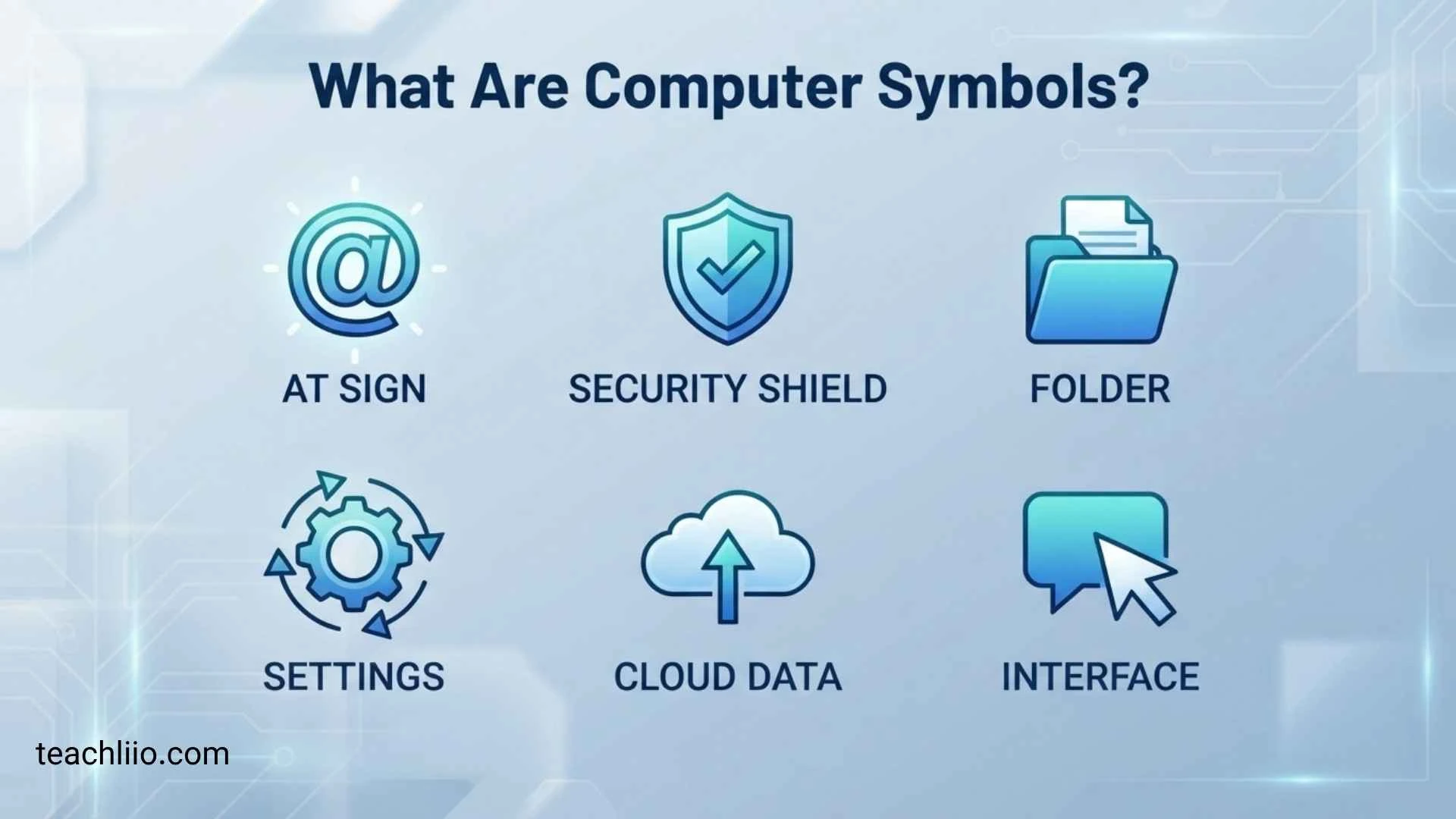
Computer symbols are characters or visual marks used to represent information, actions, commands, values, relationships, or concepts in digital environments.
Some are typed directly from a keyboard, such as @, #, $, %, and &. Others may need a symbol picker, character viewer, character map, special keyboard shortcut, or copy-and-paste method.
It is useful to understand that symbols, characters, and icons are related but not identical terms.
Symbols vs Characters
A character is a basic unit of text. It can be a letter, number, punctuation mark, or special character.
For example:
- A is a letter character.
- 7 is a number character.
- @ is a symbol character.
- © is a special symbol character.
A symbol generally communicates a particular meaning or function.
Symbols vs Icons
An icon is usually a graphical representation of an object, action, feature, or status.
For example:
- @ is a text symbol.
- © is a special character.
- A Wi-Fi graphic is an interface icon.
- A trash-can graphic commonly represents deletion or the Recycle Bin.
Windows includes desktop icons such as This PC, Recycle Bin, Network, and User’s Files.
Why Are Computer Symbols Important?
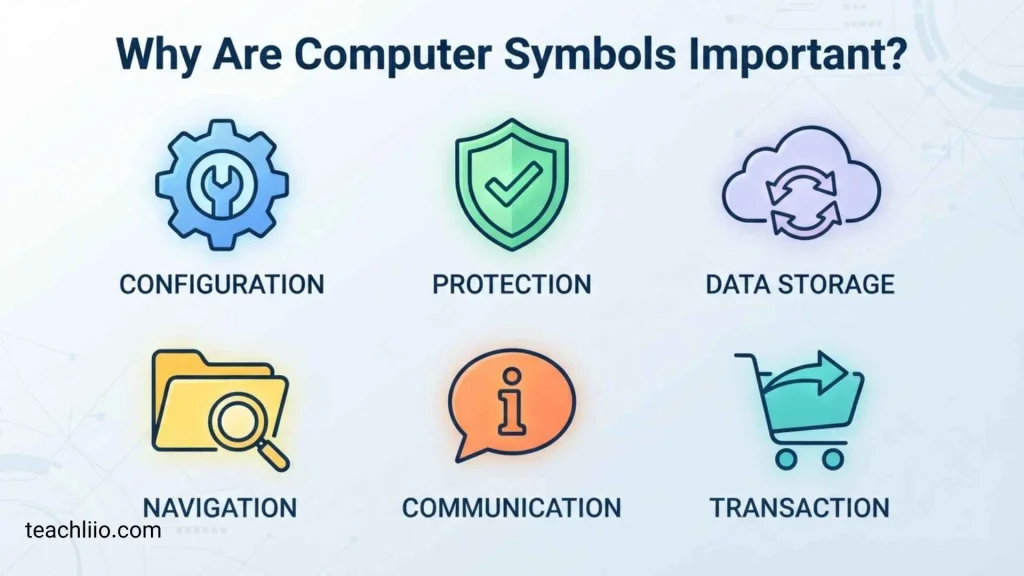
Symbols make digital communication shorter and easier to understand. Instead of writing an entire instruction, an interface can use a familiar icon or symbol.
They are used in:
- Emails
- Websites
- Documents
- Computer programs
- File names
- Mathematics
- Social media
- Search
- Software interfaces
- Keyboard shortcuts
- Computer commands
Common Computer Keyboard Symbols
Many common computer symbols are printed directly on a keyboard. Their location can vary depending on the keyboard layout and language.
@ At Sign
The @ symbol is called the at sign.
Its most familiar use is in email addresses, where it separates the username from the domain.
Example:
name@example.com
The symbol is also used for mentions on many online platforms and has special roles in some programming languages.
# Number Sign or Hash
The # symbol is commonly called the number sign, hash, or pound sign, depending on context and region.
Common uses include:
- Numbering
- Hashtags
- Programming
- Search and command syntax
Example:
#ComputerSymbols
$ Dollar Sign
The $ symbol is commonly associated with the dollar currency.
Example:
$50
In programming, $ can have completely different meanings depending on the language or environment.
% Percent Sign
The % symbol means percent.
Example:
25%
It is also used as an operator in various programming languages, where its meaning may depend on the language.
& Ampersand
The & symbol is called an ampersand and traditionally represents the word “and.”
Example:
Research & Development
It also has special uses in HTML, programming, and command syntax.
* Asterisk
The * symbol is called an asterisk.
It can be used for:
- Footnotes
- Multiplication
- Wildcards
- Required-field indicators
- Programming operations
Its exact function depends on the application.
_ Underscore
The _ symbol is called an underscore.
It is frequently used in:
- File names
- Usernames
- Programming
- Variable names
- URLs
Example:
computer_symbols
~ Tilde
The ~ symbol is called a tilde.
It can indicate approximation in some contexts and has special meanings in programming, command-line environments, and file paths.
` Backtick
The ` symbol is called a backtick, grave accent, or grave.
It is especially important in programming and technical writing.
It should not be confused with the apostrophe:
‘
^ Caret
The ^ symbol is called a caret.
It can represent an exponent or have special meanings in programming and command-line environments.
| Pipe or Vertical Bar
The | symbol is called a vertical bar or pipe.
It is especially common in programming and command-line operations.
\ Backslash
The \ symbol is called a backslash.
It is commonly seen in Windows file paths and programming.
Example:
C:\Users\Name
It is different from the forward slash:
/
/ Forward Slash
The / symbol is called a forward slash, slash, or solidus.
It appears in:
- Website addresses
- Dates
- File paths on some systems
- Programming
- Mathematical expressions
Example:
Brackets and Parentheses Symbols
Brackets are important in everyday writing, mathematics, programming, and computer commands.
Parentheses: ( )
Parentheses are used to group information or expressions.
Example:
(A + B)
In programming, they are frequently used with functions and conditions.
Square Brackets: [ ]
Square brackets are commonly used for:
- Lists
- Indexing
- Programming
- Citations
- Additional information
Example:
items[0]
Curly Braces: { }
Curly braces are also called braces.
They are heavily used in programming to group blocks of code or data structures in many languages.
Angle Brackets: < >
Angle brackets are used in:
- Comparisons
- HTML/XML
- Programming
- Mathematical expressions
For example:
5 < 10
means that 5 is less than 10.
Mathematical Computer Symbols
Computers use many mathematical symbols in calculators, spreadsheets, documents, scientific applications, and educational software.
Basic Math Symbols
| Symbol | Name | Meaning |
| + | Plus | Addition |
| − | Minus | Subtraction |
| × | Multiplication | Multiplication |
| ÷ | Division | Division |
| = | Equals | Equality |
| ± | Plus or minus | Positive or negative possibility |
| % | Percent | Percentage |
| √ | Square root | Square root operation |
Comparison Symbols
| Symbol | Name | Meaning |
| < | Less than | Smaller value |
| > | Greater than | Larger value |
| ≤ | Less than or equal to | Smaller or equal |
| ≥ | Greater than or equal to | Larger or equal |
| ≠ | Not equal | Values are different |
| ≈ | Approximately equal | Nearly equal |
Advanced Math Symbols
You may also encounter symbols such as:
∞ — infinity
π — pi
∑ — summation
√ — square root
∫ — integral
° — degree
These are commonly available through special-character or symbol tools rather than standard keyboard keys.
Programming Symbols and Their Uses
Programming languages use many symbols to create instructions, compare values, organize information, and control program behavior.
Assignment and Comparison Symbols
Some common examples include:
= — assignment in many languages
== — equality comparison in many languages
!= — not equal comparison in many languages
> — greater than
< — less than
>= — greater than or equal to
<= — less than or equal to
The important point is that programming symbols do not always have the same meaning in every programming language.
Logical Operators
Common logical operators include:
&& — logical AND in many languages
|| — logical OR in many languages
! — logical NOT in many languages
The exact syntax varies by language, so programmers should check the documentation for the language they are using.
Brackets and Syntax
Programming frequently uses:
( )
[ ]
{ }
These may represent function arguments, arrays, indexing, code blocks, or other structures.
Punctuation in Code
Characters such as these can be important in programming:
: ; , .
A semicolon, for example, terminates statements in some programming languages but is not required in the same way in others.
Special Computer Symbols
Special characters are useful when writing documents, websites, academic work, business content, and digital messages.
Copyright and Trademark Symbols
Common examples include:
© — Copyright
® — Registered trademark
™ — Trademark
These symbols are often used alongside brand names, publications, products, or protected creative work.
Currency Symbols
Common currency symbols include:
$ — Dollar
€ — Euro
£ — Pound
¥ — Yen
₹ — Indian rupee
¢ — Cent
The currency represented by a symbol can depend on the country and context.
Section and Paragraph Symbols
Some document-related symbols include:
§ — Section
¶ — Paragraph mark or pilcrow
• — Bullet
† — Dagger
‡ — Double dagger
Microsoft’s Windows documentation provides Alt-code examples for several of these special characters, including copyright, trademark, section, bullet, en dash, and em dash.
Arrows and Check Marks
Useful symbols include:
← Left arrow
→ Right arrow
↑ Up arrow
↓ Down arrow
↔ Left-right arrow
✓ Check mark
✔ Heavy check mark
These are useful in documents, instructions, lists, diagrams, and online content.
Computer Keyboard Shortcut Symbols
Some symbols represent special keys rather than ordinary characters.
Windows Key
The Windows key is usually represented by the Windows logo.
It is used in many shortcuts, such as opening system features or changing windows.
For example, Microsoft documents Windows + I for opening Settings.
Ctrl
Ctrl means Control.
It is commonly used with another key for shortcuts such as:
Ctrl + C — Copy
Ctrl + V — Paste
Ctrl + X — Cut
Ctrl + A — Select all
Ctrl + Z — Undo
These are common Windows application shortcuts, although individual applications can behave differently.
Alt
Alt is commonly used with other keys to access shortcuts and special characters.
On Windows, Alt codes can be used to insert certain characters when a numeric keypad is available.
Shift
Shift is used to type uppercase letters and the alternate character shown on many keyboard keys.
For example, on a standard US keyboard, holding Shift can produce:
! @ # $ % ^ & * ( )
Tab
The Tab key moves between fields, controls, or positions in many applications.
It is also commonly used to create indentation or navigate forms.
Escape
Esc means Escape.
It is commonly used to cancel an operation, close a menu, exit a mode, or stop an action, depending on the application.
Enter and Return
The Enter or Return key is commonly used to confirm an action, create a new line, or submit information.
The name and physical arrangement can differ between keyboards and operating systems.
Backspace and Delete
Backspace normally removes the character before the cursor.
Delete commonly removes the character after the cursor or deletes a selected item, depending on context.
Computer Icons and Their Meanings
Computer symbols are not limited to keyboard characters. Graphical icons also communicate information and actions.
Wi-Fi Icon
The Wi-Fi icon generally indicates wireless network connectivity.
Its appearance can change depending on connection status, signal strength, or operating system.
Battery Icon
The battery icon shows the computer’s power status.
It may indicate:
- Remaining charge
- Charging
- Low battery
- Critical battery status
Bluetooth Icon
The Bluetooth icon indicates Bluetooth-related connectivity or settings.
It is commonly used when connecting wireless peripherals such as keyboards, mice, headphones, or other compatible devices.
Volume Icon
The speaker or volume icon provides access to audio controls.
A variation of the icon may indicate that sound is muted.
Settings Icon
The gear icon commonly represents Settings or configuration options.
Selecting it usually opens controls for customizing a device or application.
Search Icon
A magnifying-glass icon usually represents Search.
It allows users to find files, applications, settings, webpages, or other information.
Folder Icon
A folder icon generally represents a folder containing files or other folders.
It is one of the most familiar file-management icons.
Recycle Bin
The Recycle Bin represents a temporary location for deleted files in Windows.
Microsoft identifies Recycle Bin as one of the standard Windows desktop icons.
Download Icon
A downward arrow commonly represents downloading information from the internet or another source to the local device.
Upload Icon
An upward arrow commonly represents sending a file or data from a device to another location, such as a website or cloud service.
Refresh Icon
A circular arrow commonly represents Refresh or Reload.
It is often used to update a webpage, application view, or list of information.
Lock Icon
A padlock commonly represents security, privacy, or a protected connection.
For example, a lock can indicate that a website connection uses HTTPS, although the exact interface meaning depends on the browser.
Cloud Icon
A cloud icon commonly represents cloud storage, synchronization, or online services.
Its precise meaning depends on the application.
Computer Symbols on Windows
Windows provides several ways to enter symbols and special characters.
Windows Symbol Panel
On Windows, pressing Windows key + period (.) opens the emoji panel during text entry. From there, users can select the Symbols section to browse available characters.
This is useful when the desired symbol is not printed on the physical keyboard.
Alt Codes on Windows
Some Windows symbols can be entered using Alt codes.
For example, Microsoft documents:
- Alt + 0169 — ©
- Alt + 0174 — ®
- Alt + 0153 — ™
- Alt + 0149 — •
- Alt + 0167 — §
- Alt + 0150 — –
- Alt + 0151 — —
These Alt-code methods require the numeric keypad; the number row across the top of a keyboard does not work for these traditional Alt-code entries.
Character Map
Windows also includes Character Map, which lets users view, select, copy, and paste special characters that may not be available directly from a standard keyboard.
A simple method is to search for Character Map from Windows Search, select a character, copy it, and paste it into the desired application.
Computer Symbols on Mac
Mac computers provide built-in tools for finding symbols and special characters.
Character Viewer
Mac’s Character Viewer lets users browse and insert symbols, emoji, accented letters, and characters from other writing systems. Apple documents opening it with Fn/Globe-E or through Edit > Emoji & Symbols.
In supported apps such as Pages, Control-Command-Space can also open the Character Viewer.
Keyboard Viewer
Mac’s Keyboard Viewer displays an onscreen version of the current keyboard layout.
It can help users discover where symbols are located and see additional characters available with modifier keys such as Option and Shift.
Mac Modifier Symbols
Mac menus often display special symbols for keyboard shortcuts.
Common examples include:
| Key | Common Symbol |
| Command | ⌘ |
| Shift | ⇧ |
| Option | ⌥ |
| Control | ⌃ |
| Escape | ⎋ |
| Return | ↩ |
| Delete | ⌫ |
| Up Arrow | ↑ |
| Down Arrow | ↓ |
| Left Arrow | ← |
| Right Arrow | → |
Apple identifies these symbols as representations of modifier and special keys used in Mac menu shortcuts.
How to Type Computer Symbols
There are several ways to type a computer symbol, depending on your device and the symbol you need.
Using the Shift Key
For symbols printed above numbers or other keys, hold Shift while pressing the appropriate key.
On a standard US keyboard, this produces symbols such as:
! @ # $ % ^ & * ( )
Keyboard layouts vary, so the same symbol may appear in a different location on another layout.
Using Windows Symbol Tools
On Windows, press:
Windows + .
Then choose the Symbols section and select the character you need.
Using Alt Codes
If you have a numeric keypad, some special characters can be entered with Alt codes.
For example:
Alt + 0169 → ©
Alt + 0174 → ®
Alt + 0153 → ™
The availability of a particular code and the exact insertion behavior can depend on the application and character system being used.
Using Character Map
Windows Character Map is useful when you want to browse characters visually, select one, copy it, and paste it into another application.
Using Character Viewer on Mac
On Mac, open Character Viewer and search or browse for the required symbol. Apple says the viewer can be used for emoji, symbols, accented characters, and characters from other languages.
Copy and Paste
Copy and paste is often the easiest method when you only need a symbol once.
For example:
© ® ™ ✓ → ← ↑ ↓ ∞ √
You can copy a symbol from a trusted source and paste it into a compatible document, message, webpage, or application.
Computer Symbols You Can Copy and Paste
Here is a practical collection of frequently used symbols.
Math Symbols
+ − × ÷ = ≠ < > ≤ ≥ ± √ ∞ ≈ π
Currency Symbols
$ € £ ¥ ₹ ¢
Arrows
← → ↑ ↓ ↔ ↕ ⇒ ⇐
Special Characters
© ® ™ § ¶ • † ‡ ° …
Check and Status Symbols
✓ ✔ ✕ ✖
Common Keyboard Symbols
@ # $ % & * _ + – = ~ ^ | \ / ? ! : ;
Always check the context before assuming that a symbol has only one meaning.
Computer Symbols People Often Confuse
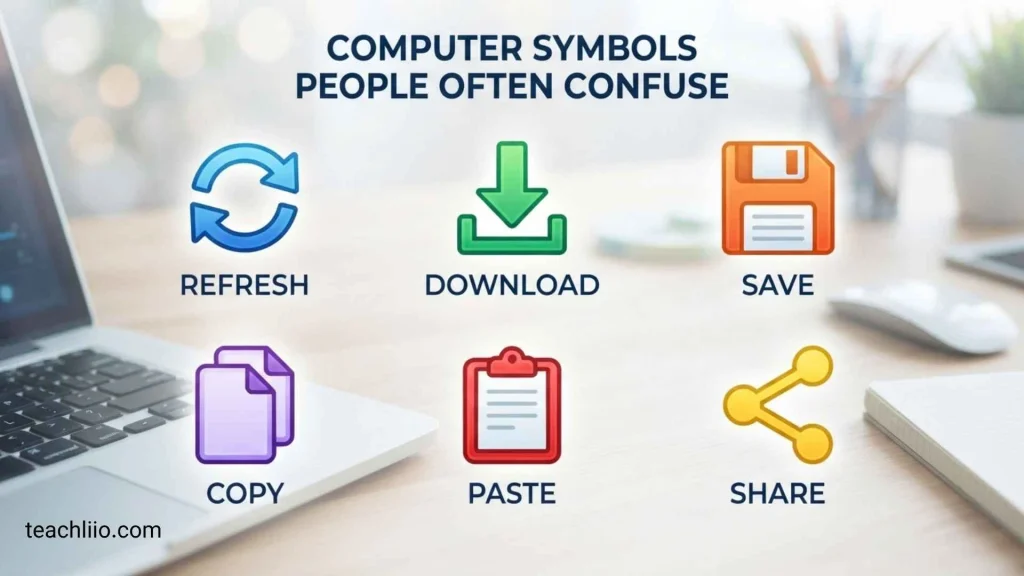
Some symbols look similar but have different names and uses.
Hyphen vs Minus
The hyphen – is primarily a punctuation mark, while the minus sign − is a mathematical operator.
They may look similar, but they are different characters.
Slash vs Backslash
The forward slash is:
/
The backslash is:
\
They are especially important in URLs, file paths, and programming.
Apostrophe vs Backtick
The apostrophe is:
‘
The backtick is:
`
They may look similar at a glance, but they are different characters and can have very different functions in programming.
Pipe vs Letter I
The pipe or vertical bar is:
|
It can be confused with uppercase I or lowercase l, particularly in some fonts.
Parentheses vs Brackets vs Braces
These three groups are different:
( ) — Parentheses
[ ] — Square brackets
{ } — Curly braces
Knowing their names makes it easier to follow programming tutorials and technical instructions.
Why Computer Symbols Can Look Different
A symbol may not look exactly the same on every device.
Keyboard Layouts
Keyboard layouts can place symbols in different locations.
A US keyboard, UK keyboard, and other language-specific layouts may use different key arrangements.
Fonts
Fonts can change the visual appearance of a symbol while preserving its underlying character.
For example, an asterisk or arrow may look slightly different in different fonts.
Operating Systems
Windows, macOS, Linux, mobile operating systems, and individual applications may use different visual designs for interface icons.
Language Settings
Changing the keyboard or input language can change the available characters and their positions.
Windows supports different keyboard/input layouts, allowing users to switch between languages and keyboard configurations.
Frequently Asked Questions
What are computer symbols?
Computer symbols are characters or visual marks used to represent information, commands, actions, values, or concepts in digital environments. They include keyboard characters, special characters, programming symbols, mathematical symbols, and interface icons.
What are the symbols on a computer keyboard called?
They are generally called keyboard symbols, special characters, punctuation marks, or symbols. Examples include @, #, $, %, &, *, _, and +.
What are the most common computer symbols?
Common examples include @, #, $, %, &, *, _, +, =, /, \, <, >, ?, and !.
What does the @ symbol mean on a computer?
The @ symbol is called the at sign. It is most familiar from email addresses, where it separates the account name from the domain. It can also have other meanings in social platforms and programming.
What does the # symbol mean?
The # symbol is commonly called the number sign or hash. It can be used for numbering, hashtags, and programming-related syntax.
What is the * symbol called?
The * symbol is called an asterisk. It can be used for footnotes, multiplication, wildcard searches, required fields, and programming operations.
What is the difference between a symbol and a computer icon?
A symbol is often a text character such as @ or ©. A computer icon is generally a graphical representation of an action, object, application, or status, such as a Wi-Fi, folder, or Settings icon.
How do I type special symbols on Windows?
Windows provides several methods. You can use the keyboard, Windows + period to open the symbol panel, Character Map, or certain Alt-code methods. Microsoft notes that traditional Alt-code entry uses the numeric keypad.
How do I type symbols on a Mac?
Mac users can use Character Viewer to browse and insert symbols. Apple documents opening it through Fn/Globe-E or Edit > Emoji & Symbols, while Control-Command-Space can open it in supported applications.
Can I copy and paste computer symbols?
Yes. You can copy many symbols directly from a character list, document, webpage, or symbol viewer and paste them into a compatible application.
Are computer symbols the same on every keyboard?
No. Symbol locations can vary by keyboard layout, language, operating system, and device. A symbol that is easy to type on one keyboard may require a different key combination on another.
Conclusion
Computer symbols make digital communication, programming, mathematics, documents, and computer interfaces easier to understand and use. From familiar keyboard characters such as @, #, $, and % to special characters such as ©, ®, and ✓, each symbol can serve a different purpose.
The most important thing to remember is that a symbol does not always have one universal meaning. Its function depends on the application, operating system, programming language, keyboard layout, and surrounding context.
If you need to type a symbol that is not visible on your keyboard, Windows provides tools such as the symbol panel, Alt-code methods, and Character Map, while Mac provides Character Viewer and Keyboard Viewer.
Whether you are learning computer basics, writing documents, working with programming code, or simply trying to identify an unfamiliar character, understanding computer symbols can make everyday digital tasks much easier.

I’m Oscar Radcliffe, a British writer who enjoys uncovering the numbers hidden within ordinary questions. My work explores quantities, counts, statistics, measurements, and fascinating comparisons across different subjects. I aim to present reliable information clearly, helping readers satisfy their curiosity while discovering interesting facts they may never have considered before.
Books:
The Science of Counting
How Many? Fascinating Numbers Explained